
Imagen | Changelog
v24.13

Intuitive workflow improvements

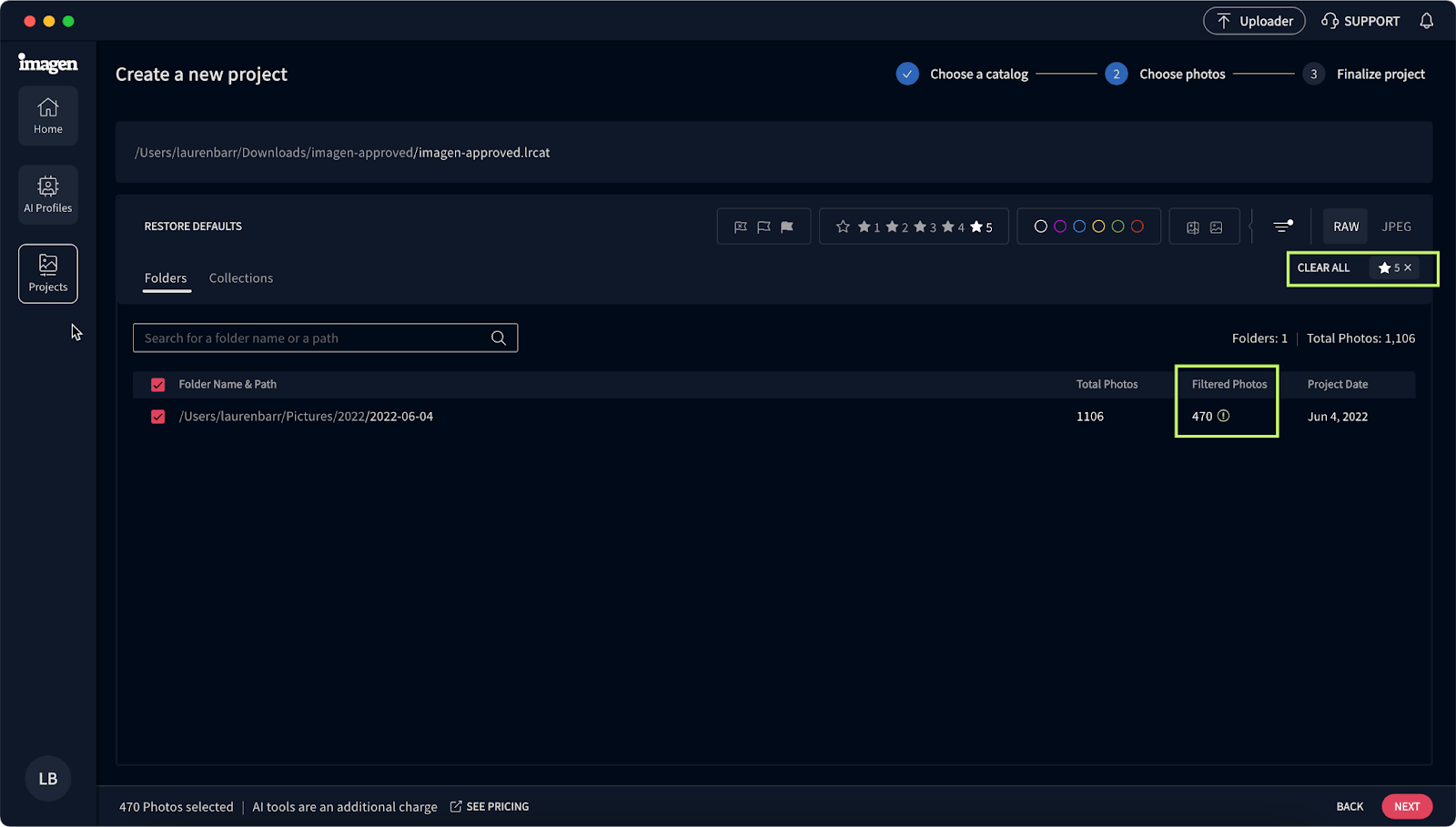
We improved our workflow to make it easier to get the best results in your projects. First, you choose your photos and their file format. Then, you choose your profile and photography type to automatically get a tailored list of AI tools for your project. Also, you'll see a GIF preview of how the AI tool works as soon as you hover over it.

More changes are on the way! Stay tuned. We're rolling out this new workflow first for Lightroom Classic users, so you might not see it yet in your Imagen app.

Introducing Whiten Teeth: Our new AI tool is now in beta

We're happy to announce that our Whiten Teeth AI tool is now in beta, ready for you to try for free. Use Whiten Teeth to get natural-looking white teeth in almost any scenario. Like our other AI tools, you can adjust settings in Whiten Teeth to match your style perfectly.

Improvements (3)
Bug Fixes (1)
v24.12

Intuitive ways to add profile adjustments to your workflow

On the Projects page, an icon indicates that a profile was adjusted in that project. Also, after adjusting a profile, you have a list of recent projects that used that profile. You can easily download a project's edits, and your photos will automatically be updated.

Improvements (3)
Bug Fixes (1)
v24.11

Easier to adjust AI Profiles at key points when editing

Now, when your AI Profile needs general tweaking, you can easily adjust it as part of the editing process. Remember that your changes apply to the profile and not just a specific project.

Look for the Adjust tool button when creating a new project and in the AI Profiles and Projects pages. After your AI Profile has been adjusted, the tool button changes to indicate that the AI Profile was updated.

Improvements (2)
Bug Fixes (1)
v24.10

Improve culling results by rating low-quality photos

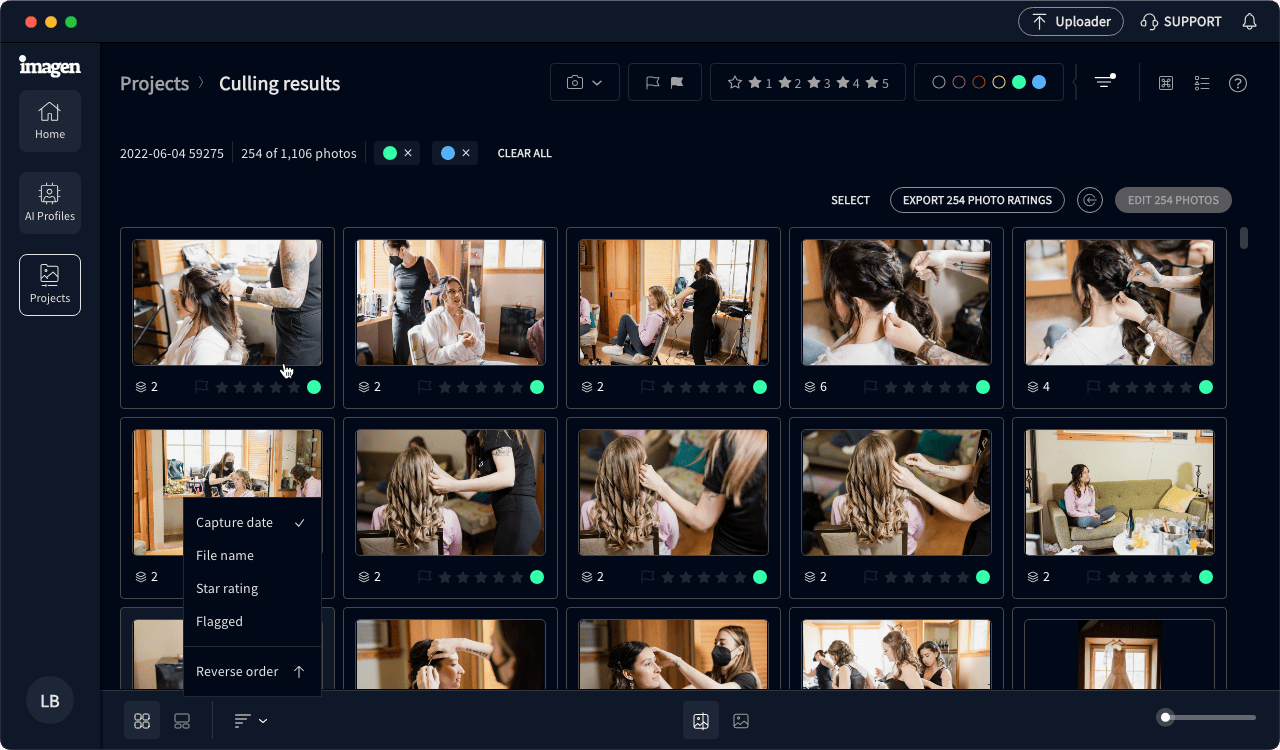
Culling Studio has a new rating category for blurry, accidentally captured, or improperly exposed photos. Add Low-rated to your culling results in the culling preferences to group these types of photos together for quick and efficient review.

Try culling as part of the Imagen trial

Even before you subscribe, try out Culling Studio. Evaluate your best photos before culling with edited previews, and send them straight to edit. Benefit from Imagen's seamless post-production flow while still trying out Imagen.

Get edited previews of JPEG photos in Culling Studio

When you cull with edited previews, you can now choose AI Profiles for JPEG photos too.

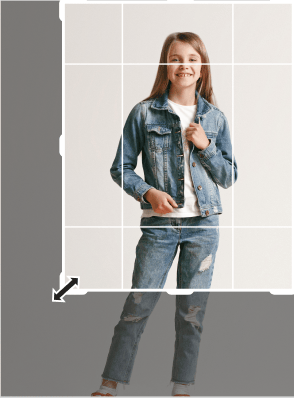
Change the aspect ratio in Portrait Crop

You can now set the aspect ratio for Portrait Crop to 5 x 7 and not just 4 x 5. Portrait Crop is our newest AI tool for portraits and for individual and group shots for school and sports.

Update your AI Profile with more control and precision

We made these changes to the Profile Adjustment controls so you can now adjust your AI Profile with more control and precision:

  • Under Basic, the Temp and Tint adjustments are now finer and more gradual
  • Under Color Grading, we added controls for Blending and Balance to give more refined control
  • Under Effects > Post-Crop Vignetting, you can adjust the Style
Improvements (5)
Bug Fixes (1)
v24.9

New AI tool for cropping portraits

Portrait Crop is an AI tool that centers the main subject of each photo and then crops with a 4 x 5 aspect ratio. It keeps optimal spacing above the head and other key details. We recommend using this crop for portrait and studio shoots as well as school and sports.

Sync changes to Culling Studio for Extended Adobe Compatibility

When you review culling results in Lightroom Creative Cloud, Photoshop, or Bridge, you can sync changes back to Culling Studio.

Improvements (1)
Bug Fixes (1)